Co|See vs. a shared drive for project selections.
A shared folder holds every file. It doesn't tell anyone which tile is final, or show them the install note on site.
Shared Drive: Google Drive, Dropbox and OneDrive
Where a shared drive stops keeping up
Files don't say what's final.
kitchen_selections_final_v3.pdf, and then v4.
Photos lose their place.
A folder of 400 site photos sorted by date doesn't tell you which one shows the shower valve.
It's slow on site.
Finding and downloading the right file in a basement with one bar of signal takes a while.
Side by side.
| Compared | Shared Drive | Co|See |
|---|---|---|
| Finding a selection later | Open the right folder, then the right file | Search the project, or open the room |
| The product | Photos and PDFs in folders | A photo of the actual product, plus the link |
| Finish, size and install notes | In a document, if someone wrote it down | On the item, next to the photo |
| What's final | A file named final_v3 | Marked on each selection |
| Who sees what | Folder by folder, for everyone you shared it with | Each person gets the access you choose |
| On the job site | Downloading files on a weak signal | Your phone, with or without signal |
| Progress | A folder of photos, sorted by date | A photo on each item as it's installed |
| After you move in | A folder you'll have to remember | The record of your house |
In Co|See
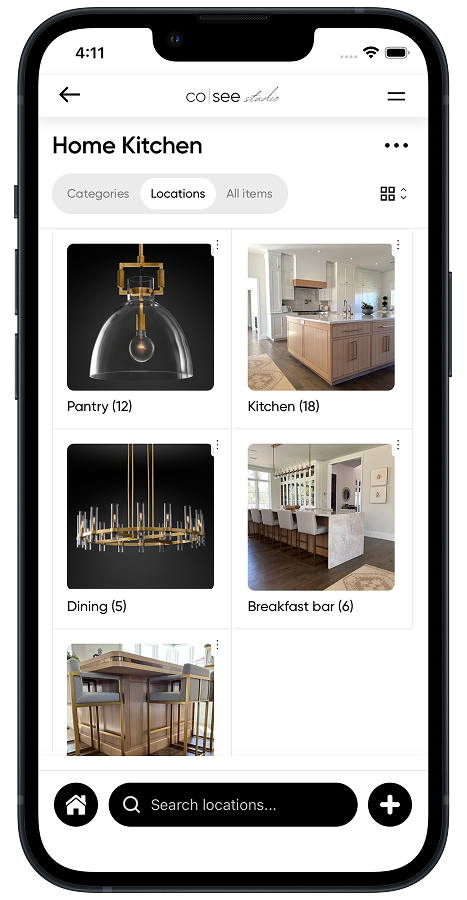
Organized by room and category, not by folder.
Open the kitchen and see every selection in it, with its photo and its details. There are no file names to decode.
When a shared drive is the right tool
- Plans, permits, contracts and other large documents.
- Drawings and CAD files.
- Long-term file storage for the whole business.
Keep the plans and documents in the drive. Keep the selections, and the photos that belong to each one, in Co|See.
Moving selections out of the folders
Bring in what you already have: import the selection spreadsheet or PDF, save the product links, and upload each photo to the selection it shows.
Start your project freeQuestions people ask.
Is Google Drive good for tracking renovation selections?
It's good for storing files: plans, permits and contracts. It doesn't show what's final or keep the photo, finish and install notes together. Co|See does that for the selections, and the drive keeps the documents.
Can I keep my plans in Google Drive and my selections in Co|See?
Yes. That's the split we'd recommend: documents in the drive, selections in Co|See.
Can I bring my existing files into Co|See?
Yes. Import your selection spreadsheet or PDF directly, save product links, and upload your photos to the selections they show.
Put the selections where everyone can find them.
Start with the ones you already have. Import a spreadsheet or PDF, or take a photo of the next thing you choose.